
To fix buffering on your Wi-Fi 6 router in minutes, focus on two key settings: enabling Quality of Service (QoS) and changing the Wi-Fi channel. Enable QoS to prioritize your most important devices and applications, ensuring they get the bandwidth they need. Also, switch to the least congested channel to reduce interference. Adjusting these settings can markedly improve your streaming experience—if you want to learn more about other quick fixes, keep exploring.
Key Takeaways
- Adjust the Wi-Fi channel to the least crowded frequency to reduce interference.
- Enable Quality of Service (QoS) settings to prioritize bandwidth for critical devices and applications.
- Switch the bandwidth setting from auto to a narrower channel width for improved stability.
- Update your router’s firmware to access the latest performance improvements and bug fixes.
- Position the router centrally and away from interference sources to enhance signal strength and reduce buffering.

TP-Link Dual-Band AX3000 Wi-Fi 6 Router Archer AX55 | Wireless Gigabit Internet Router for Home | EasyMesh Compatible | VPN Clients & Server | HomeShield, OFDMA, MU-MIMO | USB 3.0 | Secure by Design
- Wi-Fi 6 Speeds: Up to 2402 Mbps on 5 GHz, 574 Mbps on 2.4 GHz
- Enhanced Responsiveness: Supports gaming, streaming, and live feeds
- OFDMA Technology: Reduces latency and improves multi-device performance
As an affiliate, we earn on qualifying purchases.
As an affiliate, we earn on qualifying purchases.
Why Buffering Happens Even on Wi-Fi 6 Routers

Even with Wi-Fi 6 routers offering faster speeds and better efficiency, buffering can still occur. The main culprits are network congestion and signal interference. When many devices connect to your network simultaneously, bandwidth gets divided, causing delays and buffering issues. Signal interference from other electronics like microwaves or neighboring Wi-Fi networks can weaken your connection, making streaming less smooth. Walls, floors, and furniture also contribute by blocking or weakening Wi-Fi signals. Even with advanced technology, these factors create bottlenecks that slow down data transfer. It’s important to understand that Wi-Fi 6 improves performance, but it doesn’t eliminate external challenges. Addressing network congestion and minimizing interference can substantially enhance your streaming experience, reducing buffering and providing a more reliable connection. Being mindful of interference sources and optimizing your router placement are key steps toward a smoother streaming experience. Additionally, ensuring proper network configuration can help maximize your Wi-Fi 6 router’s capabilities.

TP-Link BE6500 Dual-Band WiFi 7 Router (BE400) – Dual 2.5Gbps Ports, USB 3.0, Covers up to 2,400 sq. ft., 90 Devices, Quad-Core CPU, HomeShield, Private IoT, Free Expert Support
- Wi-Fi 7 Technology: Supports Multi-Link Operation and 4K-QAM
- High-Speed Dual-Band: Up to 5764 Mbps on 5GHz, 688 Mbps on 2.4GHz
- Wide Coverage: Covers up to 2,400 sq. ft. for 90 devices
As an affiliate, we earn on qualifying purchases.
As an affiliate, we earn on qualifying purchases.
The Top Two Settings to Fix Buffering Quickly
If you want to reduce buffering on your Wi-Fi 6 router quickly, adjusting two key settings can make a big difference. First, optimize bandwidth allocation by prioritizing devices or applications that need it most. This ensures your streaming or gaming devices get the bandwidth they require without interruption. Proper network management can help tailor performance to your household’s needs, reducing congestion and lag. Additionally, implementing art care principles such as regular updates and secure configurations can further improve your network’s stability. Regularly reviewing your router’s firmware updates can help prevent potential issues and enhance security. Second, address signal interference by changing your router’s channel or position. Reducing interference from neighboring networks or electronic devices improves signal clarity and stability. Both adjustments directly impact your connection’s performance, minimizing buffering issues. Implementing European cloud innovation principles can further enhance your network’s efficiency and security. These simple tweaks can substantially enhance your Wi-Fi experience without complicated setups. By focusing on bandwidth allocation and signal interference, you’ll enjoy smoother streaming, faster downloads, and a more reliable connection overall.

AVID POWER 630W 5.3 Amp Wood Router Tool with Fixed Base Compact Router for Woodworking, 35,000 RPM, 1/4” collet & 5 Trim Bits, Straight & Roller Guide, 2 Wrenches and Carbon Brushes
- Powerful Motor: 630W 5.3 Amp for smooth woodworking
- High-Speed Operation: 35,000 RPM for efficient cutting
- Versatile Guide Modes: Straight and roller guides included
As an affiliate, we earn on qualifying purchases.
As an affiliate, we earn on qualifying purchases.
How to Enable QoS for Better Bandwidth Management

Enabling Quality of Service (QoS) on your Wi-Fi 6 router allows you to prioritize bandwidth for essential devices and applications, ensuring smoother streaming, gaming, and video calls. To do this effectively: 1. Access your router’s admin panel and locate the QoS settings. 2. Assign priority levels to devices or apps that demand the most bandwidth. 3. Adjust settings to reduce bandwidth throttling for less critical devices, preventing signal interference and congestion. 4. Proper configuration of QoS can help optimize network performance by managing network infrastructure effectively. Additionally, understanding the different settings available can help tailor the network to your specific needs. Implementing dynamic bandwidth allocation can further enhance overall network efficiency by adapting to real-time usage demands.

XH-carpet EMF Stickers Blocker Neutralize Shield Protection from Cell Phones cased and Electronic Devices WiFi 5G Tablets Laptops Computers Monitors (6Pcs Golden)
- No Signal Interference: Does not affect phone signals or charging
- Easy Application: Lightweight, simple to install on devices
- Universal Compatibility: Suitable for all electronic devices and environments
As an affiliate, we earn on qualifying purchases.
As an affiliate, we earn on qualifying purchases.
How Changing Channels and Bandwidth Can Reduce Buffering

Changing your Wi-Fi channel and bandwidth settings can substantially reduce buffering issues by minimizing interference and congestion on your network. Channel optimization involves selecting the least crowded channel, which helps your devices communicate more efficiently. Most routers automatically pick the best channel, but manually switching to a less congested one can improve performance. Adjusting bandwidth allocation allows you to prioritize certain devices or activities, reducing lag during critical tasks like streaming or gaming. For example, narrowing your channel width can lessen interference, while widening it can boost speed if your environment is free of congestion. These simple adjustments optimize your Wi-Fi setup, leading to a more stable connection and fewer buffering interruptions. Proper channel and bandwidth management is a quick way to enhance your network’s overall performance. Additionally, understanding concepts like Free Floating can help you better navigate and optimize your network environment.
Troubleshooting Persistent Buffering Problems
If you’re experiencing persistent buffering, start by checking your router’s placement to guarantee a strong signal. Make sure to update your firmware regularly and tweak your Wi-Fi settings for peak performance. These simple steps can often resolve the most stubborn buffering issues. Additionally, optimizing your Wi-Fi network settings can significantly improve your connection stability and speed. Ensuring your router placement is optimal can make a noticeable difference in signal strength and overall connection quality. To further enhance your connection, consider enabling QoS settings to prioritize bandwidth for critical devices and applications. Adjusting your channel selection can also reduce interference and improve overall performance, especially when combined with proper network segmentation strategies.
Check Router Placement
To improve your Wi-Fi performance, start by checking your router’s placement. Proper router placement ensures strong signals and minimizes interference. Place your router in a central location, away from walls and obstructions, to maximize coverage. Keep it elevated, like on a shelf, to enhance signal distribution. Also, avoid placing it near devices that cause interference, such as microwaves or cordless phones. Additionally, understanding Wi-Fi interference can help you identify and eliminate sources of signal disruption, further improving your connection. Being aware of frequency bands and how they impact signal strength can also lead to better placement choices for optimal performance. Proper router configuration can further enhance network stability and speed. Here are three tips for ideal router placement:
- Position the router in a central, open area for even coverage.
- Elevate it to reduce signal blockage.
- Keep it away from electronic devices that can cause interference management issues.
These steps help optimize router placement, reducing buffering caused by weak signals or interference.
Update Firmware Regularly
Regularly updating your router’s firmware is essential for resolving persistent buffering issues. Firmware updates improve performance, stability, and compatibility with your devices. They often include security patches that protect your network from vulnerabilities, preventing potential disruptions caused by malware or cyberattacks. To update your firmware, visit your router manufacturer’s website or access the admin panel, where updates are typically available for download. Keeping your firmware current ensures you benefit from the latest features and fixes that can help minimize buffering. Don’t ignore firmware updates, as outdated software can hinder your Wi-Fi performance and compromise security. Make checking for updates a routine part of your network maintenance to keep your Wi-Fi running smoothly and securely. Firmware updates enhance your network’s security and reliability, reducing the risk of disruptions, much like how preventative measures in a whole-house water filtration system can maintain clean, consistent water quality throughout your home. Regular firmware updates are also a key part of device longevity, ensuring your router remains functional and protected over time.
Adjust Wi-Fi Settings
Adjusting your Wi-Fi settings can often resolve persistent buffering issues by optimizing your network’s performance. First, change your Wi-Fi channel to avoid channel interference, which can cause slow speeds. Second, enable device prioritization to give your main devices, like streaming or gaming gear, higher bandwidth. Third, review your network’s bandwidth allocation, ensuring no single device hogs resources. These adjustments reduce congestion and improve overall stability. Keep in mind, selecting a less crowded channel helps mitigate interference from neighboring networks. Prioritizing devices ensures critical activities run smoothly without interruption. Additionally, network optimization techniques can help identify other potential issues affecting your Wi-Fi performance. Implementing these performance enhancement strategies can lead to a more reliable and faster connection. calm and organized homes can benefit from a stable internet connection, making routines more seamless and less stressful. Regularly monitoring your network can help you stay ahead of potential issues and maintain optimal performance. Being aware of Wi-Fi interference sources like microwaves or Bluetooth devices can help you further troubleshoot connectivity problems. By fine-tuning these settings, you optimize your Wi-Fi for faster, more reliable connections, minimizing buffering and boosting your online experience.
Quick Steps to Optimize Your Wi-Fi 6 Router Today
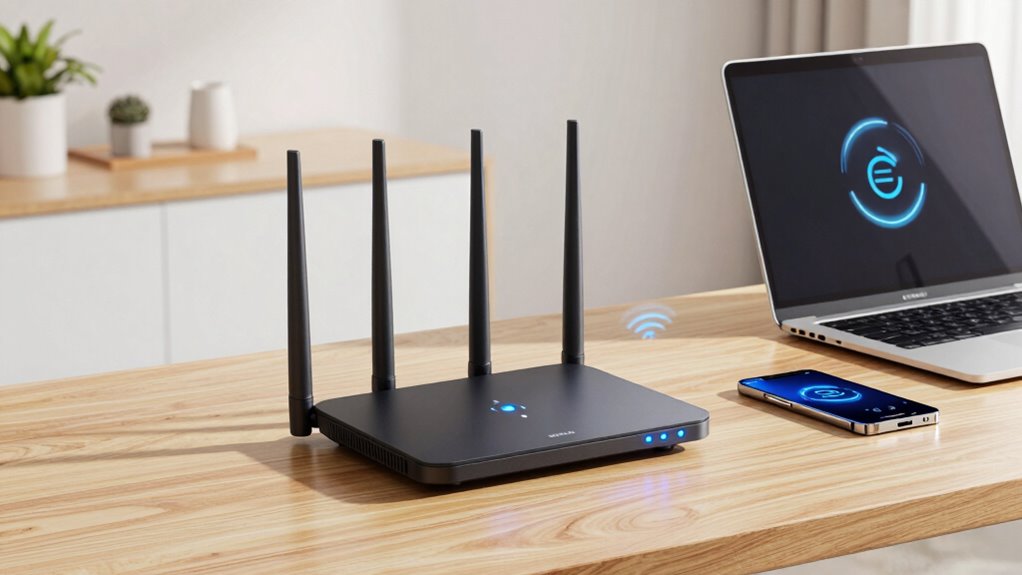
Optimizing your Wi-Fi 6 router quickly can substantially improve your internet experience. Start by updating your firmware to ensure you have the latest security patches and features. Enable network security protocols like WPA3 to protect your data. Review and adjust parental controls to manage connected devices and restrict bandwidth-heavy activities, reducing buffering. Change your router’s default password to a strong, unique one to prevent unauthorized access. Position your router in a central location, away from interference, to maximize coverage. Disable unused features, such as guest networks if unnecessary, to streamline performance. These simple steps improve reliability and security, giving you a faster, safer Wi-Fi experience today.
Frequently Asked Questions
Can Outdated Device Firmware Cause Buffering Issues on Wi-Fi 6 Routers?
Yes, outdated device firmware can cause buffering issues on Wi-Fi 6 routers. When your device’s firmware isn’t updated, it may lack proper device compatibility with the latest router features, leading to connectivity problems. Regular firmware updates improve compatibility and performance, ensuring smoother streaming and browsing. So, keep your device firmware current to avoid buffering and enjoy peak Wi-Fi 6 speeds.
How Does Router Placement Affect Wi-Fi 6 Buffering Performance?
Think of your router like a lighthouse guiding ships safely to shore. Proper router positioning ensures ideal signal coverage, avoiding dead zones. Place your router centrally, elevated, and away from thick walls or metal objects, which can cause interference. This interference reduction allows for cleaner, stronger signals, directly improving Wi-Fi 6 buffering performance. When you position your router wisely, you minimize disruptions and enjoy seamless streaming and browsing.
Do Connected Smart Home Devices Impact Wi-Fi 6 Network Stability?
Connected smart home devices can impact your Wi-Fi 6 network stability by causing device network congestion. When multiple devices, like smart speakers or security cameras, are active simultaneously, they share bandwidth, which can slow down your connection or cause buffering. Ensuring your router has smart home compatibility and managing device priorities can help reduce congestion, maintaining a more stable and efficient network for all your connected devices.
Is There a Way to Prioritize Specific Devices for Better Streaming?
Yes, you can prioritize specific devices for better streaming using device prioritization. Access your Wi-Fi 6 router’s settings and look for bandwidth allocation or Quality of Service (QoS) options. By assigning higher priority to your streaming devices, you guarantee they receive more bandwidth, reducing buffering. This way, your high-priority devices get the necessary resources for smooth streaming, improving your overall experience without affecting other connected devices.
How Often Should I Update My Router’s Firmware for Optimal Performance?
Think of your router’s firmware update as giving it a much-needed spa day. You should check for updates monthly to keep performance optimization on point. Regular firmware updates fix bugs, patch security flaws, and boost speed—preventing your Wi-Fi from turning into a sluggish snail. Don’t wait for a meltdown; stay proactive and update often, ensuring your connection runs smoother than a buttered slide.
Conclusion
Think of your Wi-Fi as a busy highway—without the right signals, traffic jams happen. By tweaking just a couple of settings, you’re opening clear lanes for your data to flow smoothly. With these quick fixes, buffering becomes a thing of the past, and your streaming or gaming experience can cruise along effortlessly. So, take control now—your perfect connection is just a few adjustments away. Smooth sailing awaits!