To fix lag and dropouts in your wireless keyboard, start by checking the batteries and ensuring a clear line of sight to the receiver. Next, update your Bluetooth drivers and disable power-saving settings to improve stability. Finally, move the keyboard closer to the receiver, reduce interference from other devices, and consider using a USB extension cable for better signal strength. Following these steps will help you create a more reliable connection—continue for more detailed tips.
Key Takeaways
- Check and replace batteries to ensure strong power supply for stable connection.
- Minimize wireless interference by moving the keyboard closer and away from other electronic devices.
- Update Bluetooth drivers and firmware to fix bugs that cause lag or dropouts.
- Use a USB extension cable to improve line of sight and signal strength.
- Disable Bluetooth power-saving features to maintain a consistent wireless connection.
Diagnose Wireless Keyboard Lag and Dropouts (Identify Common Causes)
Wireless keyboard lag and dropouts can be frustrating, but knowing how to diagnose the causes can help you fix the issues quickly. Start by checking the battery health, as low or failing batteries often cause connection instability. Replace or recharge the batteries if needed. Next, consider wireless interference, which can disrupt the signal between your keyboard and the receiver. Common sources include Wi-Fi routers, cordless phones, or other wireless devices operating on the same frequency. Move your keyboard closer to the receiver and away from other electronic gadgets. Ensuring a clear line of sight between the keyboard and the receiver can also improve connection stability. Additionally, understanding radio frequency interference and how it affects wireless devices can help you identify and mitigate potential disruptions. Being aware of electromagnetic interference sources in your environment can further enhance your troubleshooting efforts. Recognizing signal interference sources early can help you troubleshoot effectively and keeps your keyboard functioning smoothly. Monitoring wireless signal strength with compatible tools can also assist in pinpointing interference issues.
Update Drivers and Adjust Settings for a Stable Connection
Updating your device drivers and adjusting relevant settings can substantially improve your keyboard’s connection stability. First, ensure your Bluetooth drivers are current by visiting your device manufacturer’s website or using device management tools. Outdated drivers can cause Bluetooth interference, leading to lag or dropouts. Next, check your Bluetooth settings to optimize performance; disable power-saving options that limit Bluetooth activity to prevent disconnections. Additionally, enable battery optimization features on your device to maintain consistent power levels, which helps sustain a stable connection. Keep your keyboard’s batteries charged or replace them if needed, as low power can cause signal issues. Regularly monitoring device performance can help identify potential issues early. Ensuring that your device has the latest software updates can also prevent compatibility problems that affect Bluetooth stability. You can also consider adjusting connection settings, such as re-pairing your device or resetting Bluetooth modules, to enhance reliability. By updating drivers and fine-tuning device settings, you reduce interference and improve overall connection reliability for smoother, more responsive typing. Additionally, reviewing your interference sources like Wi-Fi routers or other electronic devices can help maintain a stable Bluetooth connection.
Improve Wireless Connection Stability With Hardware and Environment Changes
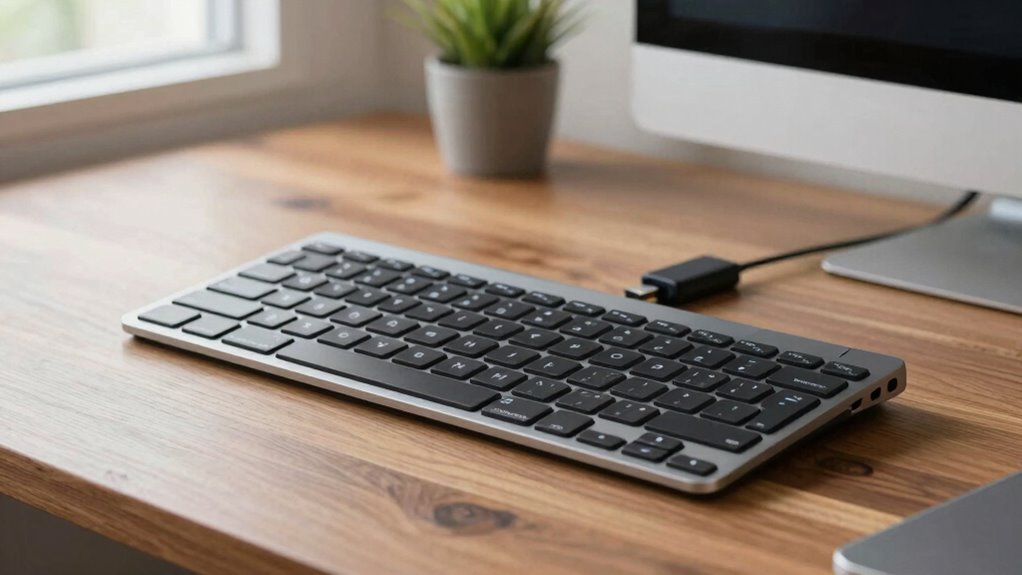
Even after updating drivers and adjusting settings, environmental factors and hardware placement can still impact your keyboard’s connection. Bluetooth interference from other devices, like Wi-Fi routers or wireless speakers, can disrupt signals. To improve stability, keep your keyboard and receiver close, ideally within a few feet, and avoid obstacles such as metal objects or thick walls. Disable power management features that put Bluetooth devices to sleep, as this can cause dropouts. Ensure your Bluetooth adapter is using the latest firmware and is positioned to minimize interference. Using a USB extension cable for the receiver can help maintain a clear line of sight and reduce signal loss. Additionally, minimizing interference sources in your environment can considerably boost your wireless connection’s stability and responsiveness. Regularly checking for Bluetooth device firmware updates can also help address known issues and improve overall connection reliability. Maintaining proper hardware placement and reducing environmental obstacles are essential for consistent performance. Being aware of wireless environment factors can help you troubleshoot connection issues more effectively.
Furthermore, optimizing signal strength by adjusting your device’s placement can lead to even better connection stability.
Frequently Asked Questions
Can Using a Different USB Port Improve Keyboard Connectivity?
Yes, using a different USB port can improve your keyboard connectivity. By performing USB port optimization, you reduce potential interference and guarantee a better signal. Moving your wireless keyboard receiver to a port closer to your device or one on the back of your PC can help minimize interference sources. This simple step often results in fewer dropouts and lag, making your keyboard more responsive and reliable.
Does Replacing Batteries Always Fix Wireless Keyboard Lag?
Replacing batteries often fixes wireless keyboard lag because new batteries provide a stronger, more stable power source. Poor power management from old batteries can cause connectivity issues and delays. However, it doesn’t always solve lag if other factors like interference or driver problems are at play. Always try replacing the batteries first, then check for other issues if lag persists. Proper power management keeps your keyboard running smoothly.
How Often Should I Update My Keyboard Firmware?
Think of firmware updates as your keyboard’s secret potion for peak performance. You should update your keyboard firmware every few months or whenever the manufacturer releases a new version. Regular updates enhance keyboard performance, fix bugs, and improve connectivity. Don’t wait for lag or dropouts to strike—stay proactive. By keeping your firmware current, you guarantee smooth, reliable typing, turning your wireless keyboard into a well-oiled machine.
Are There Specific Environments That Cause More Interference?
Certain environments can cause more interference with your wireless keyboard, especially those with a lot of radio frequency activity like Wi-Fi routers, cordless phones, or Bluetooth devices. Physical obstructions such as thick walls, metal furniture, or large appliances can also block signals, leading to lag or dropouts. To improve performance, keep your keyboard close to the receiver and minimize obstacles and sources of radio frequency interference in your workspace.
Is It Better to Use a Bluetooth or RF Wireless Keyboard?
Imagine a clear open field—your keyboard’s signal needs that space. Bluetooth keyboards are convenient but can suffer from interference, especially in busy environments, and may drain batteries faster. RF keyboards often offer a more stable connection and longer battery life, making them better for gaming or work. If you want simplicity and portability, Bluetooth works well; for reliability and performance, RF is your best choice.
Conclusion
By following these steps, you can turn your wireless keyboard from a frustrating ghost into a reliable companion. Think of fixing lag and dropouts like tuning an instrument—you’ll soon enjoy smooth, responsive typing like a melody you can finally dance to. Don’t let connection issues steal your focus; with a little effort, you’ll regain control and work seamlessly. Remember, patience and persistence are your best tools—soon, your keyboard will feel as trustworthy as an old friend.